
User guide
Install the Slack Integration
This guide assumes you just finished onboarding in boxes.dev, so you already have a Template box and a mostly empty project. You will connect your team's Slack workspace, link your Slack user, create a Slack-triggered automation, and run it from Slack.
Before You Start
You need:
- A boxes.dev account in the team where you set up the project.
- Team admin access in boxes.dev to connect the Slack workspace.
- Permission in Slack to install apps, or a Slack admin who can approve the install.
- A Slack channel where you can invite
@boxes.dev, or permission to DM@boxes.dev.
boxes.dev connects one Slack workspace per team. Slack automations start only when you mention @boxes.dev in a channel where the app is available, or when you DM @boxes.dev.
1. Connect Slack for Your Team
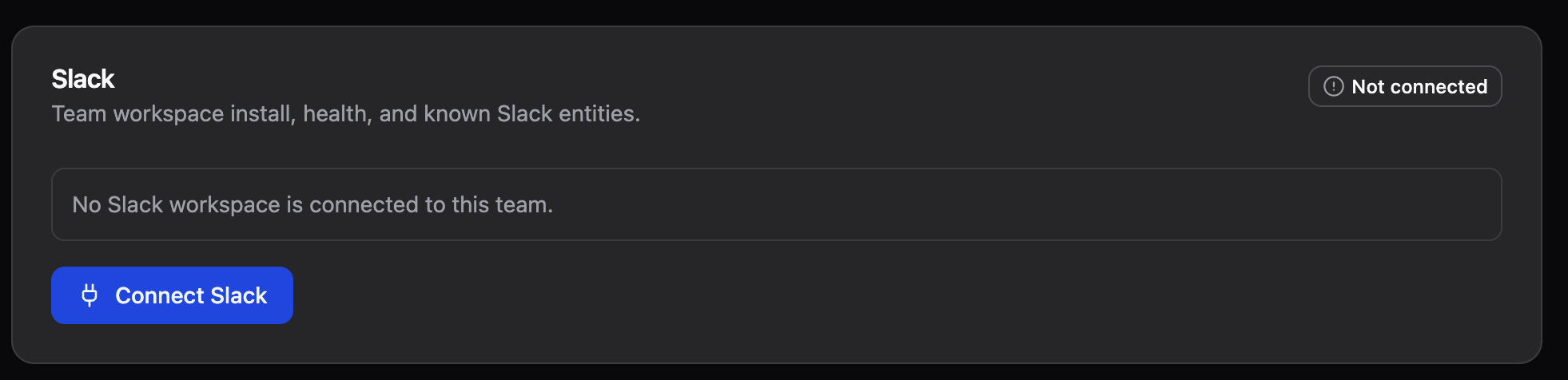
Open boxes.dev in a web browser not the desktop app and go to Team Settings. In the Slack section, click Connect Slack.
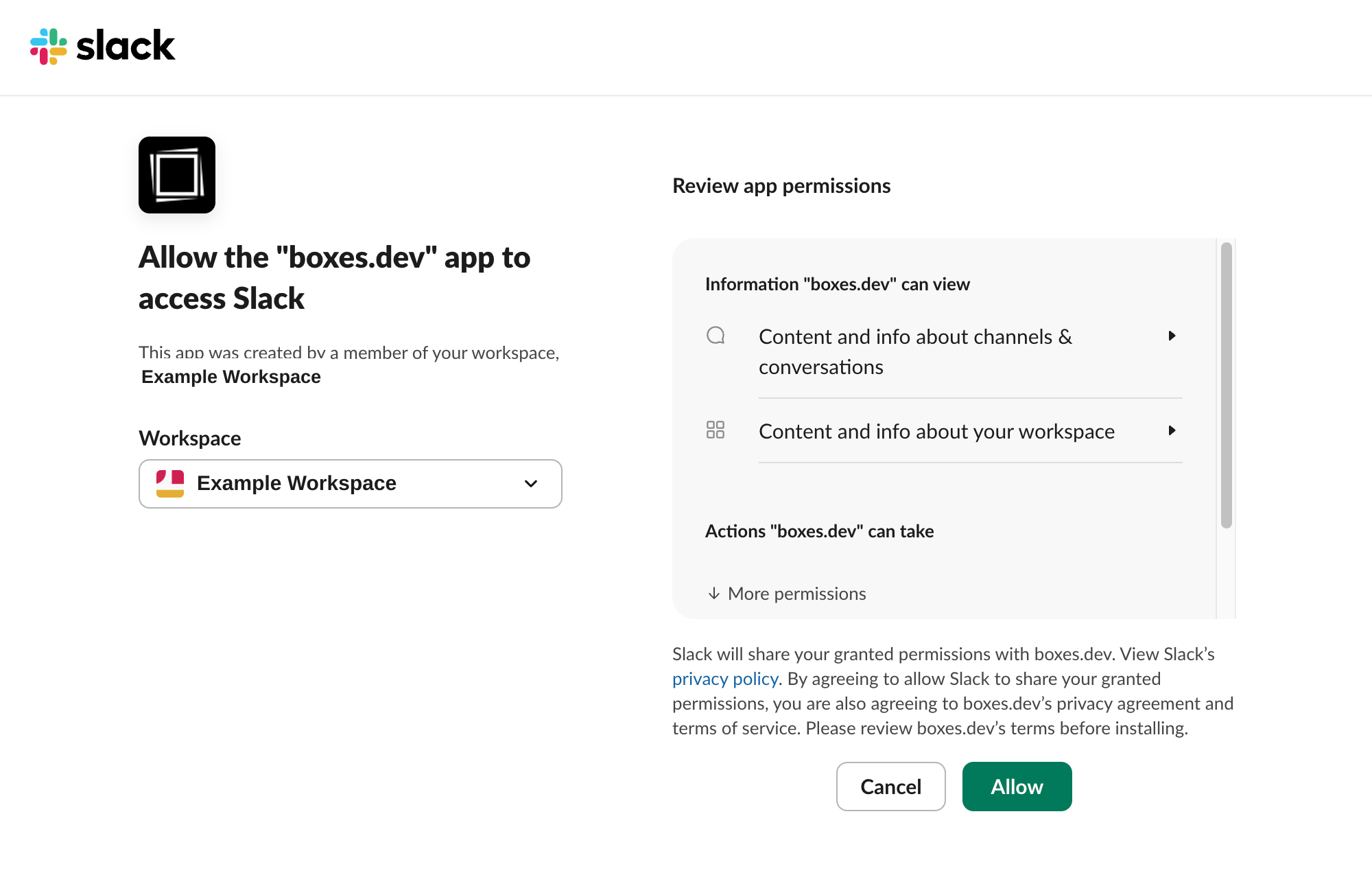
Slack opens an app permission screen. Choose the workspace you want to connect, review the permissions, then click Allow.
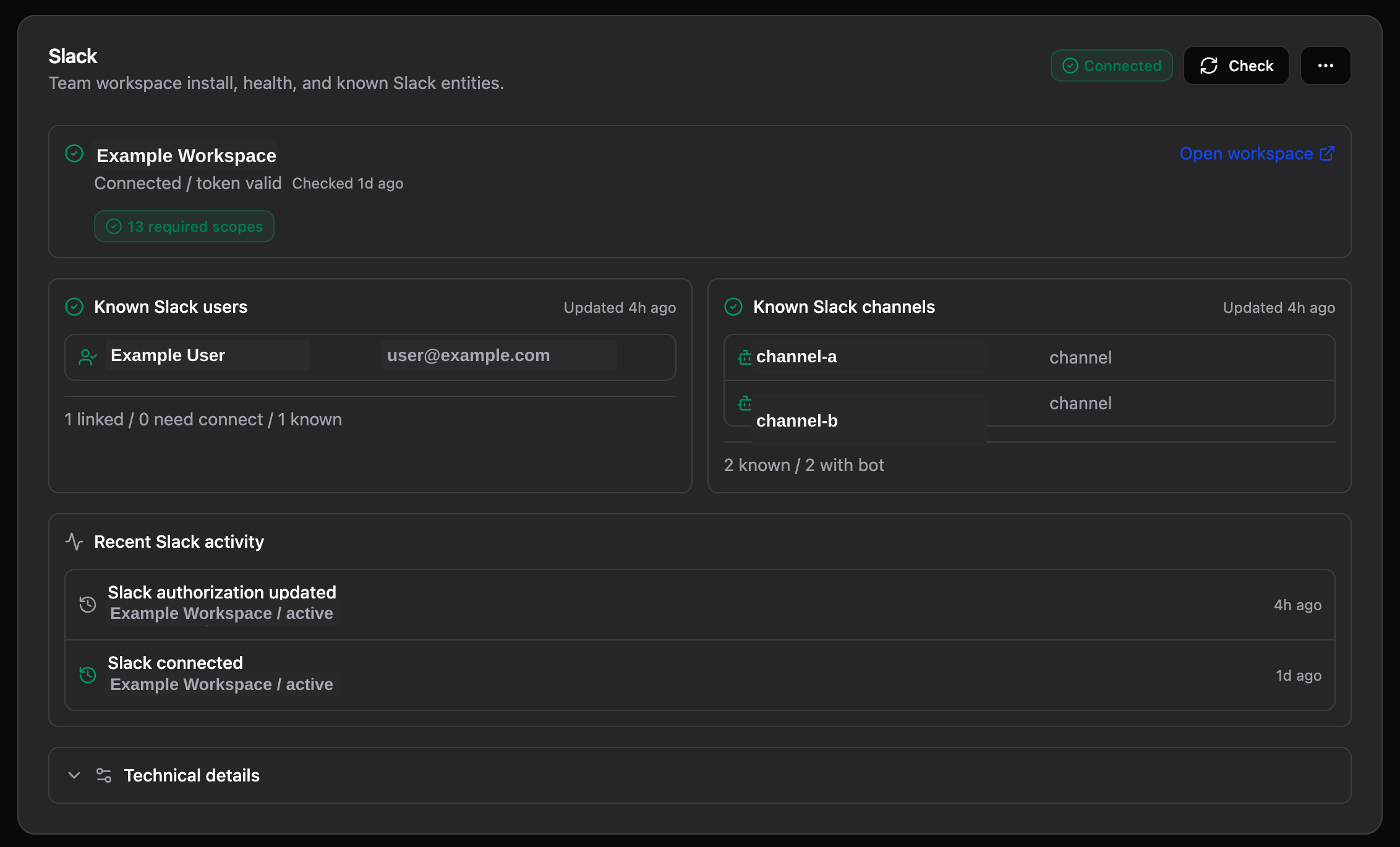
After Slack redirects back to boxes.dev, the Slack section should show Connected. If you want to verify the install, click Check.
2. Create a New Automation
In the left sidebar, open Automations and click + or New automation.

Give the automation a clear name, choose the agent you want to use, and write the instructions that should run every time Slack starts this automation. This can be as simple as "Follow the instructions in the slack message" - the agent's prompt will have Slack message/thread content and metadata appended to it.
Automations use the latest Template box snapshot, just like threads on devboxes that you start manually. Make sure your Template box setup is complete before triggering any runs from Slack, but you can set up this automation in the meantime.
3. Choose Slack as the Trigger
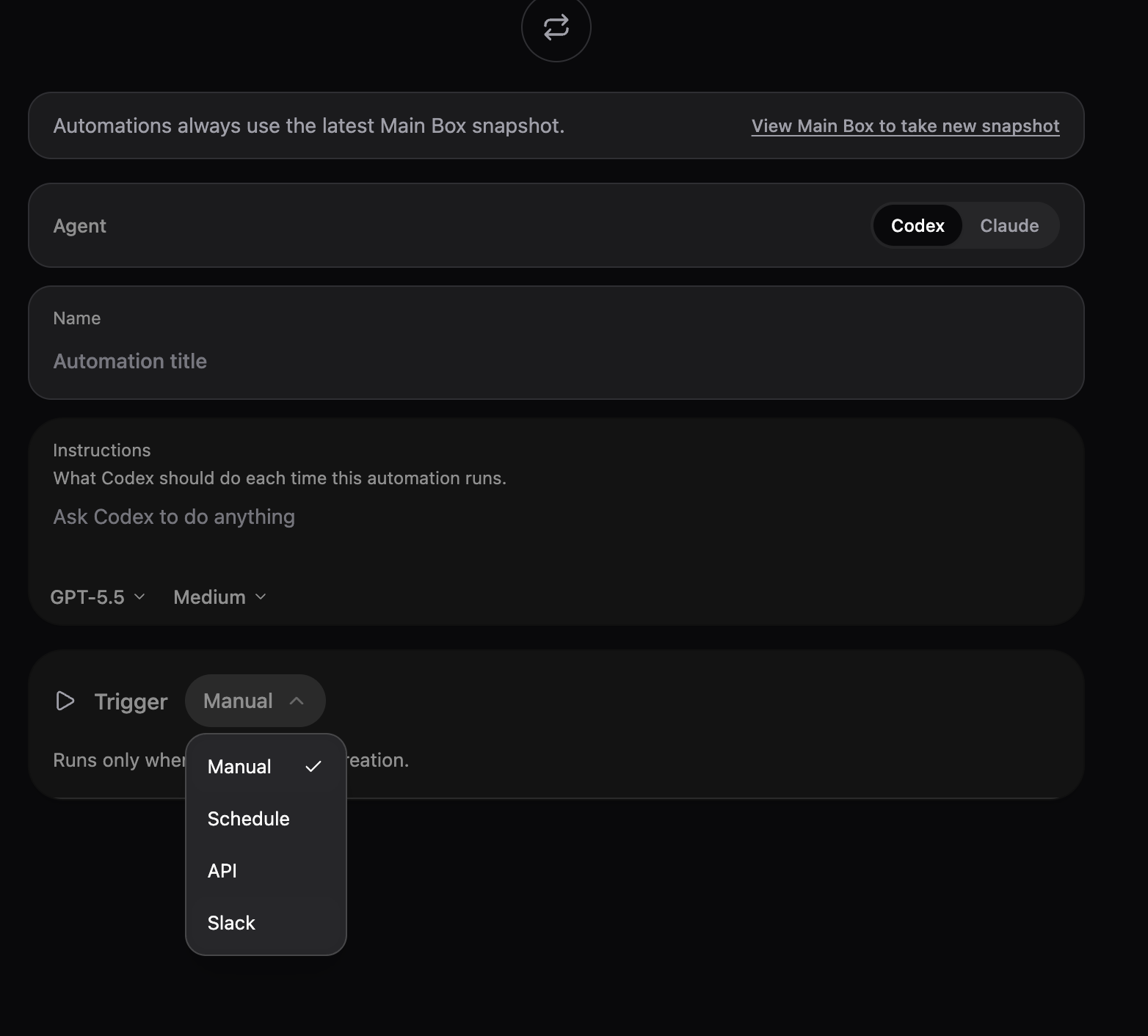
In the automation editor, open the Trigger dropdown and choose Slack.
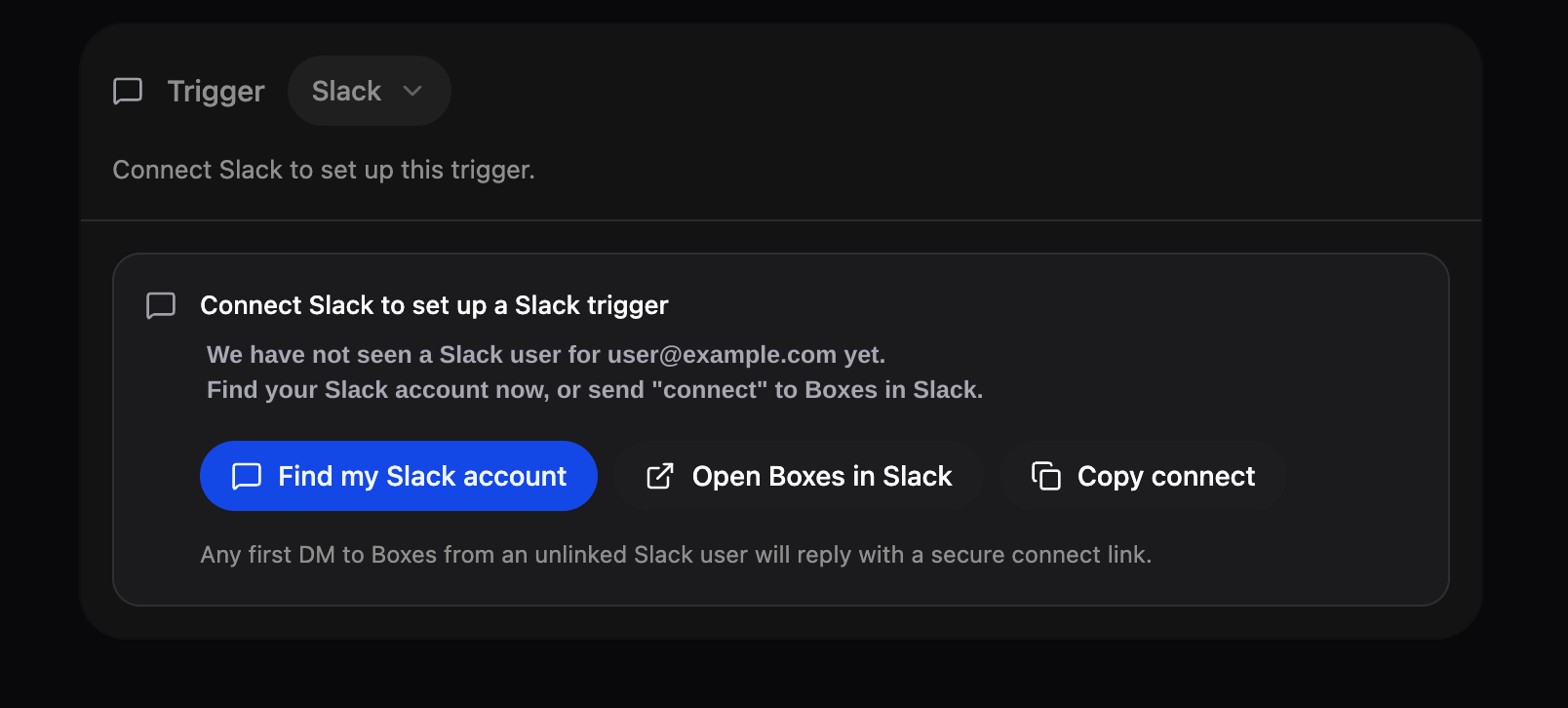
If boxes.dev has not linked your Slack user yet, it will ask you to connect your Slack identity. Click Find my Slack account, or click Open boxes.dev in Slack and send connect to @boxes.dev. Follow the secure connect link that boxes.dev sends back.
4. Configure How Slack Starts the Automation
Choose how people should invoke the automation:
- Default mention runs when you mention
@boxes.devwithout a command. - Named command runs when the mention includes a command such as
@boxes.dev !bugfix investigate this error.
Then choose where the automation can run:
- All internal channels where boxes.dev is available allows channels in your own workspace where
@boxes.devhas been added, plus 1:1 DMs with boxes.dev. - Everywhere boxes.dev is available, including Slack Connect adds channels your workspace shares with other organizations.
- Only selected channels limits the automation to channels you choose, which may include a shared channel.
For a named command, use Who can run this from Slack? to keep the automation private, choose specific teammates, or allow any teammate with Slack connected.
You can always start your own default thread by mentioning @boxes.dev. Under Who else can trigger a new thread?, leave the default as No one, choose specific teammates, or allow any teammate with Slack connected.
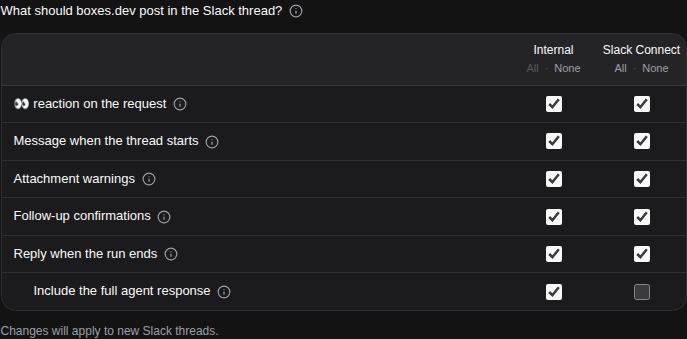
Under What should boxes.dev post in the Slack thread?, choose reactions, progress notices, and completion replies. The Internal and Slack Connect columns have separate choices, with All and None shortcuts for each. Slack Connect's full response starts off, so its completion reply contains a link unless you enable the response too.
Keep Reply when the run ends enabled for completion replies. Disabling it retains your full-response choice but stops those replies. Saved activity settings apply to newly linked Slack threads; existing threads keep the settings they started with.
Save the automation.
5. Mention boxes.dev to Slack
In Slack, mention @boxes.dev in any channel where you want the automation to run. This will invite @boxes.dev to that channel if the bot is not present already. You can also use a 1:1 DM with @boxes.dev.
For a default mention automation, send a message like:
@boxes.dev review this thread and tell me what changed
For a named command automation, include the command:
@boxes.dev !bugfix investigate the error above and suggest a fix
If a teammate has allowed you to start a thread in their workspace, put their Slack mention immediately after boxes.dev:
@boxes.dev @Ananya investigate the failed deploy above
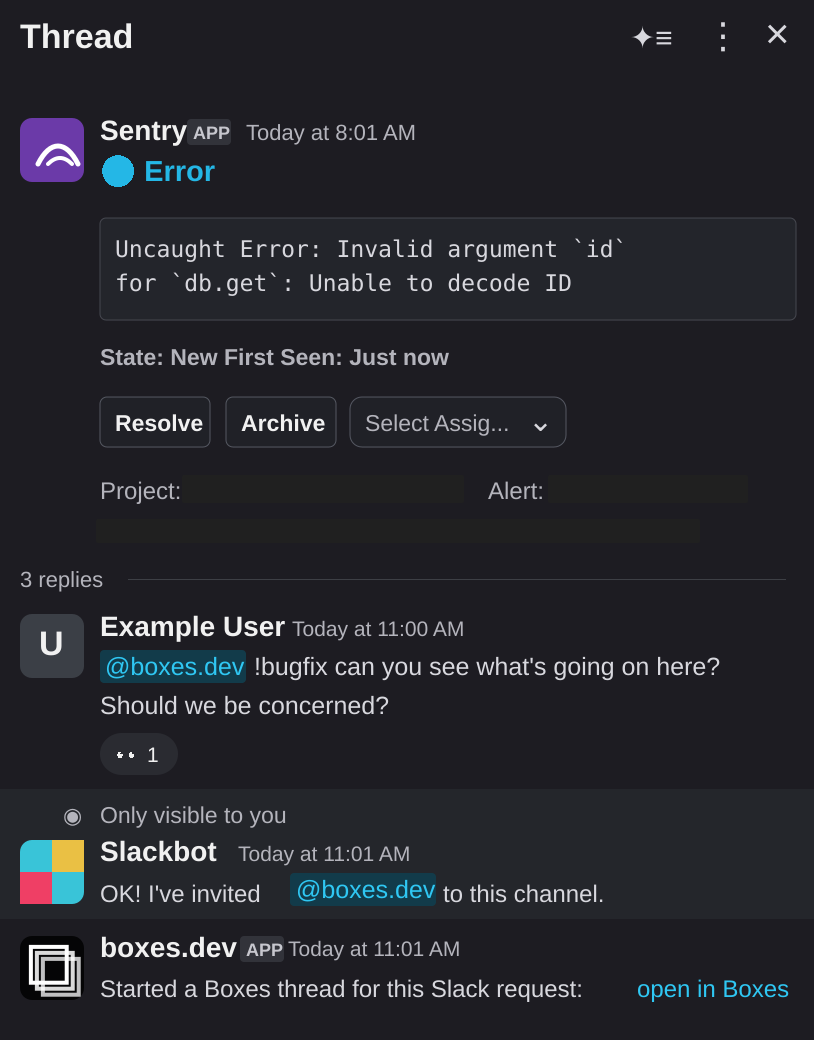
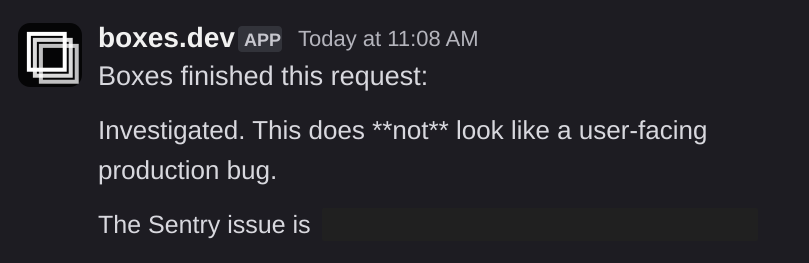
boxes.dev starts an agent thread from your latest Template box snapshot. If the automation is configured to reply in Slack, boxes.dev posts the final response in the same Slack thread or DM.
The new thread belongs to the teammate you mentioned and uses their automation and workspace. When start messages are enabled, the reply names them. boxes.dev also sends them a direct message with links to the Slack request and new thread, even when automatic activity in the source conversation is off.
Continuing A Slack-Started Thread
To send a follow-up to the agent from Slack, mention @boxes.dev again in the same Slack thread. Ordinary Slack replies without the mention stay in Slack and are not sent to the agent.
To start a new run for another teammate from the same Slack thread, use @boxes.dev @teammate <request> again. Later follow-ups go to the newest run linked to that Slack thread.
Troubleshooting
If Connect Slack is missing, ask a boxes.dev team admin to connect the Slack workspace from Team Settings.
If the automation editor says it has not seen your Slack user, use Find my Slack account or DM connect to @boxes.dev.
If a channel does not appear as an option, invite @boxes.dev to the channel and click Check in Team Settings.
If Slack does not start the automation, confirm that @boxes.dev is in the channel, your Slack identity is linked to boxes.dev, and your message includes the mention.